
 By:
By: Time needed: About 2 minutes for basic conversion. 5-10 minutes if you add interactivity.
Skill level: None required. If you can upload a file, you can do this.
What you'll need: A PDF file and access to a flipbook platform.
There's a reason people do this. As Alanna Alexander at Velocity Partners put it: "And then you turn it into a PDF to make sure no-one ever reads it." A flipbook is the fix for that. Same content, different format, and suddenly people actually flip through it.
Technically, this works because PDF is standardized (ISO 32000-1). Practically, distribution still matters: a World Bank publication analysis found many static PDF reports were never downloaded.
The Quick Version
- Export your document as a PDF (if it isn't already)
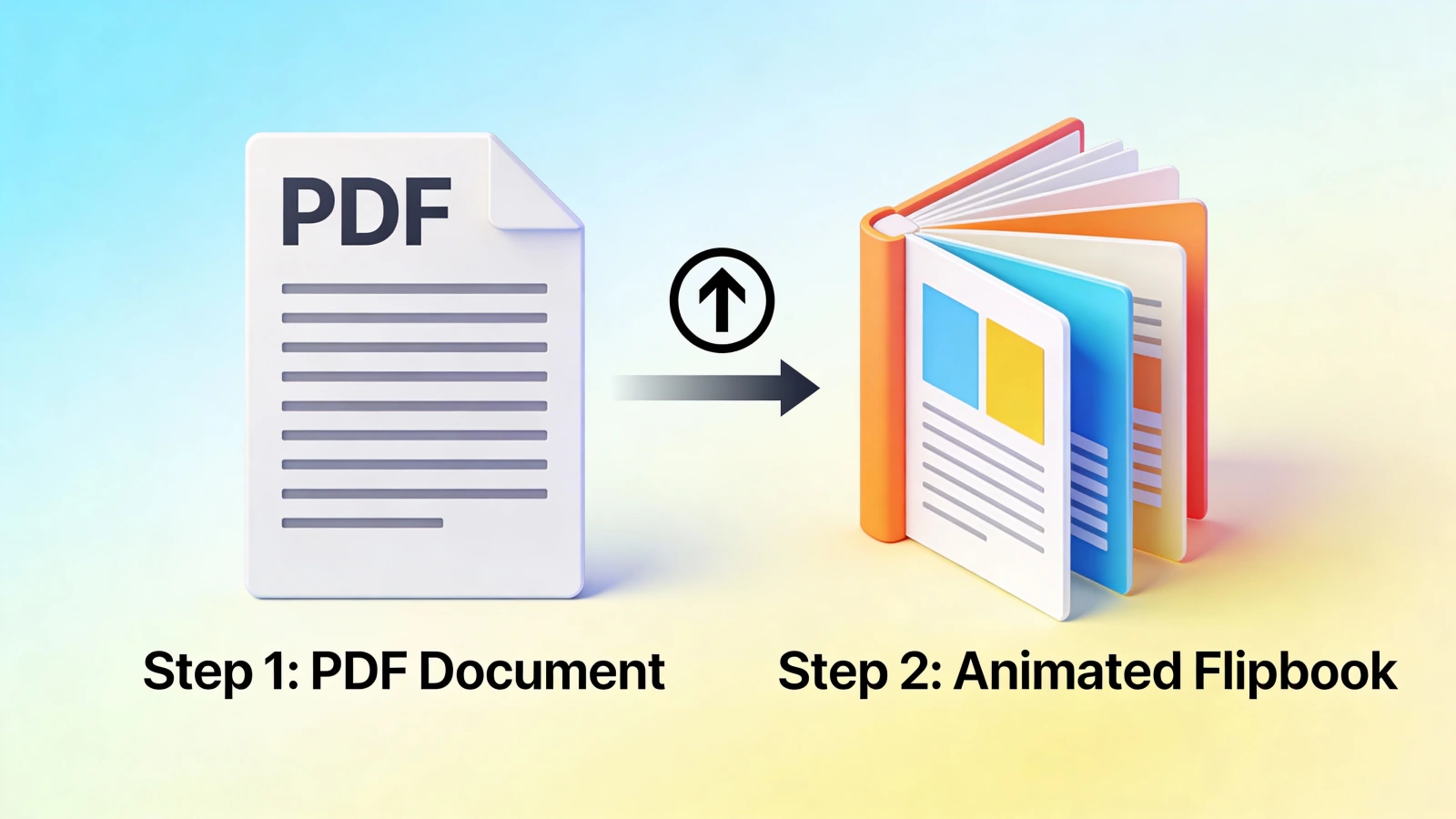
- Upload it to a flipbook platform
- Wait about 15 seconds for conversion
- Customize (optional but recommended)
- Share your flipbook link
That's really it. Let's walk through each step.
Step 1: Prepare Your PDF
You probably already have a PDF. If not, create one.
Almost any program can export to PDF:
- Microsoft Word/PowerPoint: File > Save As > PDF
- Google Docs/Slides: File > Download > PDF Document
- Canva: Download > PDF Print or PDF Standard
- Adobe InDesign: File > Export > PDF
Quick PDF tips before upload
Resolution matters. For on-screen reading, 150 DPI is fine. If readers might zoom in on details, go higher.
File size. Larger files take longer to convert. If your PDF is over 50MB, consider compressing it first. Most flipbook platforms handle this, but starting smaller is faster.
Page orientation. Both portrait and landscape work. But landscape often looks better on widescreen monitors. Portrait works better on phones. Think about where your audience will read.
Bleed and margins. The page-flip animation sometimes crops the extreme edges slightly. Keep important content at least 0.25 inches from the edge.
Step 2: Choose a Flipbook Platform
Several platforms convert PDFs to flipbooks. They differ in features, pricing, and quality.
What to consider:
- Conversion speed: Some take minutes, some take seconds
- Customization options: Can you add your logo? Change colors? Remove their branding?
- Interactivity: Can you add links, videos, buttons?
- Analytics: Do you get reader tracking?
- Pricing: Free tools usually have limits or watermarks
For this tutorial, I'll use Flipbooker. The steps are similar across platforms.
Step 3: Upload Your PDF
Go to your flipbook platform and find the upload area.
In Flipbooker:
- Log in to your account (or start a free trial)
- Click "Create New Flipbook" or the + button
- Drag your PDF into the upload area, or click to browse
What happens next: The platform processes your PDF. Each page becomes a high-quality image. The page-flip animation gets applied. This usually takes 10-20 seconds for a typical document.
Expected result: You'll see a preview of your flipbook with page-turn animation working.
If something goes wrong
"File too large" error: Compress your PDF first. Tools like SmallPDF or Adobe Acrobat can help. Or check if the platform has a size limit you're exceeding.
"Processing failed" error: Usually means a corrupted or password-protected PDF. Try re-exporting the original document as a new PDF.
Pages look blurry: Your source PDF resolution is too low. Go back to your design tool and export at higher quality.
Step 4: Customize Your Flipbook
This is where flipbooks pull ahead of plain PDFs.
Add your branding
Most platforms let you customize appearance:
- Logo: Upload your logo. It appears on the toolbar or cover.
- Colors: Match your brand colors for the background, buttons, toolbar.
- Background: Some platforms offer custom backgrounds or textures.
In Flipbooker, go to Settings > Branding. Upload your logo and pick colors.
Why this matters: Your flipbook represents your brand. Generic software branding looks cheap. Your own logo and colors look intentional.
Make it interactive
Here's where things get interesting. Your PDF pages are now a canvas.
Add clickable links:
- Go to the editor view
- Select the page with content you want to link
- Draw a hotspot area over the text or image
- Add your destination URL
- Save
Now readers can click that area and go somewhere.
Embed a video:
- Pick the page where you want the video
- Add a video element
- Paste a YouTube, Vimeo, or direct video URL
- Position and size it
The video plays right inside your flipbook. No leaving the page.
Add buttons:
- Create a button element
- Set the text ("Learn More", "Contact Us", whatever)
- Link it to a URL or email address
- Style it to match your design
Expected result: Your static PDF pages now have working links, embedded media, and clickable calls to action.
Step 5: Configure Settings
Before sharing, check your settings.
Privacy options
Who can view this?
- Public: Anyone with the link
- Unlisted: Not searchable, but anyone with link can view
- Private: Restricted to specific people or email domains
Lead capture
Want to collect emails before people can read?
Enable email gating. Readers enter their email to access the content. You get a lead, they get the flipbook.
Decide what's gated:
- Gate the entire flipbook
- Let them preview first few pages, then gate
- Gate only after a certain page
SEO settings
If you want your flipbook found in search:
- Add a descriptive title (not just "brochure.pdf")
- Write a meta description
- Make sure SEO indexing is enabled
Download permissions
Do you want readers to be able to download the original PDF? Some companies do, some don't. Your choice.
Step 6: Preview and Test
Before sharing, check everything.
- Click through every page. Make sure they all converted correctly.
- Test on mobile. Does it look good? Can you flip pages easily?
- Click your links. Do they go where they should?
- Play any videos. Do they load?
- Test the email gate (if enabled). Does it work?
Better to catch problems now than after you've shared it with 500 people.
Step 7: Share Your Flipbook
You have options.
Direct link
Every flipbook gets a unique URL. Copy it. Share it anywhere.
- Email it directly
- Post on social media
- Add to your email signature
- Include in presentations
- Put it in a QR code
Embed on your website
Get the embed code (usually an iframe snippet). Paste it into your website's HTML.
The flipbook appears right on your page. Readers view it without leaving your site. Good for product pages, resource libraries, or landing pages.
In Flipbooker, go to Share > Embed. Copy the code. Paste it where you want the flipbook to appear.
Email campaigns
Most email platforms don't support embedded flipbooks. But you can:
- Include the link with a preview image
- Use an animated GIF thumbnail that links to the flipbook
- Design an email that drives traffic to the flipbook
Social media
LinkedIn, Twitter, Facebook all support links. Share your flipbook URL.
For better engagement, add a compelling preview image or short description.
Step 8: Track Performance
After sharing, check your analytics. Research from Kapost shows that interactive content generates conversions 70% of the time compared to just 36% for passive content, so tracking what works is essential.
What to look for:
- Total views: How many people opened it
- Unique viewers: How many different people
- Average time spent: Are people actually reading?
- Page-by-page engagement: Which pages get attention
- Drop-off points: Where do people stop reading
- Link clicks: Are your CTAs working
This is the insight you never had with PDFs. Use it.
If page 5 has high drop-off, look at page 5. Maybe it's boring. Maybe it's confusing. Maybe the pacing is off. Now you know where to improve.
Advanced Tips
Make pages more readable on mobile
With over 60% of web traffic coming from mobile devices, mobile readability is critical:
- Use larger fonts (14pt minimum for body text)
- Keep important content in the center
- Avoid text that runs to the very edge
- Test on an actual phone, not just preview mode
Optimize for faster loading
- Compress images before adding to your original document
- Avoid huge full-page photos if they're not necessary
- Keep PDF under 30MB when possible
- Use JPEG for photos, PNG for graphics with text
Create a table of contents
Many flipbook platforms support clickable TOCs. Readers can jump directly to sections.
Worth the extra 5 minutes, especially for longer documents.
Add a call to action on every page
Don't make readers hunt for how to contact you or take the next step. Make it obvious. Consistent.
Update without breaking links
One of the best things about flipbooks: you can update the content and the link stays the same. Readers always see the latest version.
Changed a price? Fixed a typo? Updated a photo? Replace the PDF. Existing links still work.
Troubleshooting Common Issues
Problem: Pages are in the wrong order Your source PDF page order is what the flipbook uses. Fix it in the original document and re-upload.
Problem: Text looks fuzzy Source resolution too low. Export your PDF at higher quality (300 DPI for best results).
Problem: Links don't work Make sure you've published/saved changes. Test in an incognito browser to rule out caching issues.
Problem: Video won't play Check the video URL format. Most platforms need YouTube, Vimeo, or direct MP4 links. Some video hosts block embedding.
Problem: Flipbook loads slowly Large source file. Compress images in the original document. Or check if your platform offers optimization settings.
What's Next?
You've made a flipbook. Now:
- Share it with someone who would have received a PDF before. See if they engage differently.
- Check analytics after a day or two. Did people actually read it?
- Iterate. Based on what you learn, make the next version better.
- Explore more features. Lead capture, email notifications when someone opens it, team sharing. There's more to discover.
For the bigger picture on why flipbooks work and when to use them, check out our complete flipbook guide.
The whole process takes under five minutes for a basic flipbook, maybe ten to fifteen if you add links, videos, and lead capture. Either way, faster than most people expect. And once you see the analytics from your first share, you'll wonder why you were sending static PDFs in the first place.
FAQs
How long does it take to make a flipbook from a PDF?
Basic conversion takes about 15 seconds. Add 5-10 minutes if you want to customize branding, add interactive elements like links and videos, or configure lead capture.
Do I need design skills to make a flipbook?
No. The PDF is your design. The flipbook platform handles the page-flip animation, hosting, and analytics. You upload the file and it does the rest.
Can I update my flipbook without breaking the link?
Yes. Most platforms let you replace the PDF, and the existing link keeps working. Readers always see the latest version.
Will my flipbook work on mobile?
Yes, but test it. Landscape-oriented designs can feel cramped on phone screens. Portrait layouts tend to work better on mobile. Use larger fonts (14pt minimum) and keep important content away from the edges.
Can I track who reads my flipbook?
Yes. Most flipbook platforms offer analytics showing who opened it, which pages they viewed, and how long they spent reading. Some also support email gating to identify readers.