
 By:
By: The Real Problem: Your PDF Is Too Big for Email
Gmail caps attachments at 25MB. Outlook at 20MB. Most corporate email systems at 10MB.
Meanwhile, your 15-page report with a few photos is sitting at 47MB. Now what?
You could use Dropbox or Google Drive. That works. But sometimes people just want the file attached. Or maybe their company blocks external links. Or they need it offline.
So you need to compress. But here's the fear: will it look terrible after?
Short answer: not if you do it right. This guide shows you how.
Time required: Under 2 minutes Quality loss: Minimal to none (you control it)
How PDF Compression Actually Works
Knowing what's inside a PDF helps you understand why some files shrink dramatically and others barely budge.
PDFs contain several types of content:
- Text - Very small. Compresses to almost nothing.
- Vector graphics - Lines, shapes, logos. Also small.
- Images - The culprit. Usually 80-95% of file size.
- Metadata - Hidden info like author, creation date. Tiny.
- Fonts - Embedded font files. Can add up.
When you compress a PDF, the tool mainly targets images. It either:
- Reduces resolution - Makes images fewer pixels
- Increases compression - Uses lossy algorithms (like JPEG) more aggressively
- Removes unnecessary data - Strips metadata, unused objects
According to PDF compression research, JPEG compression at maximum settings can achieve compression ratios of up to 1:10, while text content using LZW compression can reduce to about half the size of an equivalent file. Text stays sharp. Images might get softer. The question is always: how much is acceptable?
There's a reasonable skepticism about compression tools that just say "make it smaller" without explaining what they're doing. As one Hacker News commenter put it: "I can never trust this kind of 'simple tool' that magically reduces file sizes without telling me what it's doing." Fair point. That's why the compression level selector matters. You should know what tradeoff you're making.
The Fastest Way: Use Our Free Compressor
Skip the comparison shopping. Here's how to compress right now.
Step 1: Open the Tool
Go to our free PDF compressor. No account, no signup.
Step 2: Upload Your File
Drag and drop your PDF. Or click to browse. Your file stays in your browser. We don't see it.
Step 3: Choose Compression Level
This is the important decision:
- Low compression - Smallest reduction, best quality. Good for documents you'll print.
- Medium compression - Balanced. Works for most situations.
- High compression - Aggressive. Smallest files. Best for screen-only viewing.
Start with medium. Check the result. Adjust if needed.
Step 4: Download
The tool shows you the new file size. Download it. Compare to the original if you're unsure about quality.
What File Size Reduction to Expect
Results vary wildly based on what's in your PDF.
| Content Type | Typical Reduction |
|---|---|
| Text-only documents | 10-20% (already small) |
| Text with some images | 40-60% |
| Image-heavy documents | 50-80% |
| Scanned pages (all images) | 60-90% |
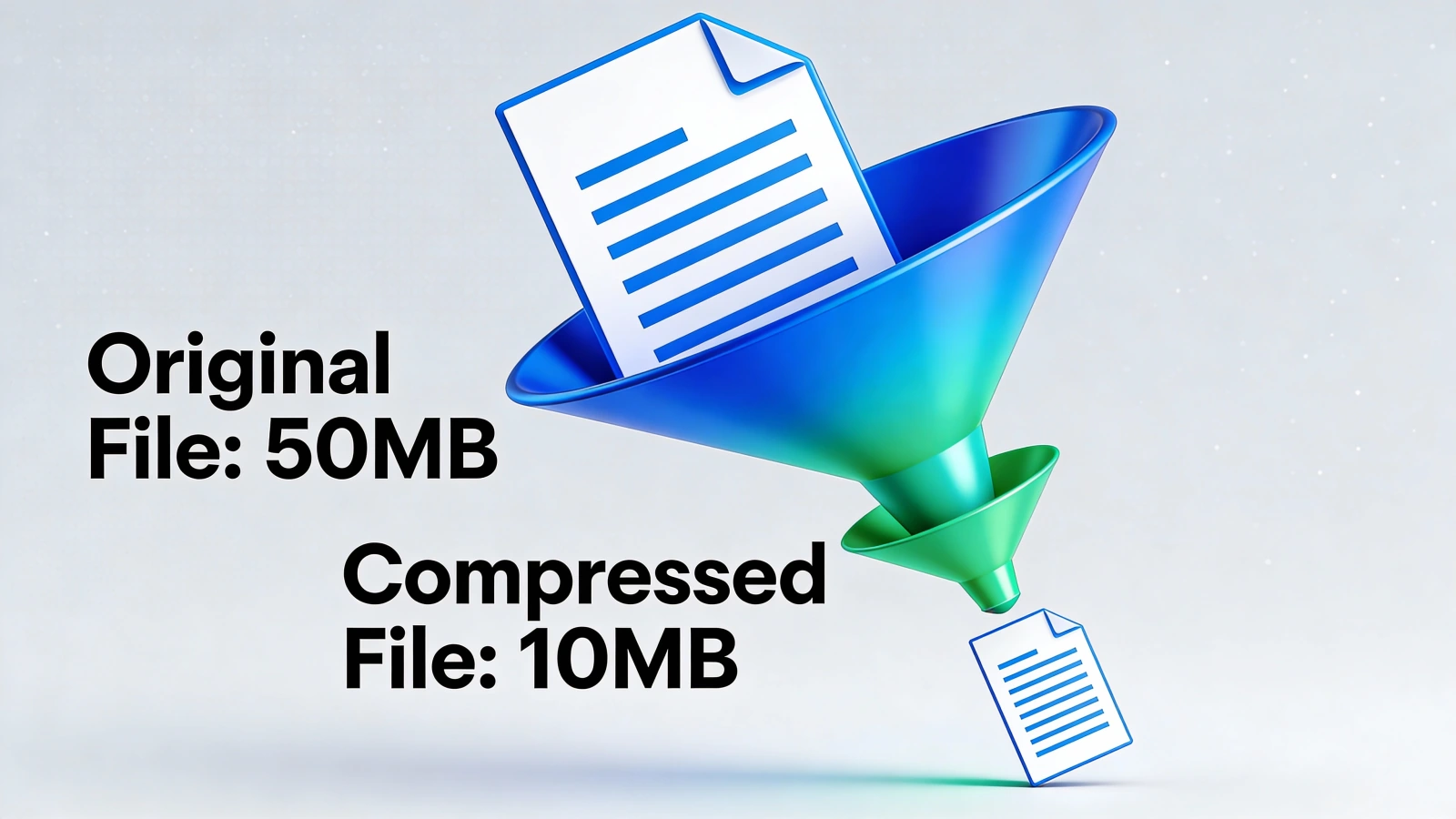
A 50MB scan might drop to 8MB. A 2MB text document might only drop to 1.8MB. The bigger the original images, the more room for compression.
Quality vs. Size: Finding the Right Balance
Here's the honest tradeoff: smaller files mean lower image quality. Always.
The question is whether the quality loss is noticeable. And honestly? For most business documents, it isn't. The people obsessing over compression artifacts on a quarterly report are solving a problem their recipients don't have. Your CFO isn't pixel-peeping the charts.
When to Use High Compression
- Emailing documents people will only view on screen
- Archiving large volumes of old documents
- Sharing informal drafts
- Any situation where file size matters more than perfect images
When to Use Low Compression
- Documents going to professional printing
- Photography portfolios
- Legal documents where every detail matters
- Anything with small text in images (like screenshots)
When to Skip Compression Entirely
Sometimes compression isn't the answer:
- File is already small (under 5MB)
- Every pixel matters (medical imaging, technical drawings)
- You'll need to edit the PDF later
Why Browser-Based Compression Matters
Most online compression tools work by uploading your PDF to their servers, processing it, and sending it back.
Ours doesn't. The compression happens in your browser using JavaScript. Your document never leaves your computer.
This matters because:
- Privacy - Sensitive documents stay private. No server logs, no temporary copies on someone else's machine.
- Speed for small files - No upload wait. For files under 10MB, browser processing is usually faster.
- Works offline - Once the page loads, you could disconnect and still compress.
The tradeoff: very large files (50MB+) might be slower than server processing. For most documents, it's not noticeable.
Other Ways to Compress PDFs
Adobe Acrobat Pro
Adobe invented PDF in 1993, and PDF became an ISO standard in 2008. Naturally, their tool handles compression well.
File > Save As > Reduced Size PDF
Or for more control: File > Save As > Optimized PDF
The Optimized PDF option lets you tweak every setting. Image resolution, font embedding, discarding hidden data. It's powerful but overwhelming for simple needs.
Cost: $13/month minimum. Don't subscribe just for compression.
Preview on Mac
Free and built in. Apple's Preview User Guide covers all the features. Open your PDF, then:
File > Export > Quartz Filter > Reduce File Size
The results are aggressive. Works fine for email previews. Might be too much for anything you'd print.
Smallpdf
Web-based, free tier available. Uploads to servers though, so not ideal for sensitive docs. Works well for non-confidential files under their size limits.
PDFsam (Free Desktop App)
PDFsam includes compression alongside merge and split tools. It's been open source since 2006. Good all-in-one option if you prefer desktop software.
Troubleshooting Compression Problems
"File didn't get smaller"
This happens when:
- The PDF is mostly text (already tiny)
- Images were already heavily compressed
- The PDF uses older compression already
Not every PDF has room to shrink. If your file is mostly text, 10-20% reduction is normal.
"Images look terrible"
You compressed too aggressively. Try again with a lower setting. Or accept that some files just need to stay big.
For image-heavy documents where quality matters, consider:
- Compressing less and using a file-sharing service instead
- Asking if recipients really need full resolution
- Sending lower-res for review, full-res only when requested
"File got bigger!"
Rare but possible. Some heavily optimized PDFs can actually grow when reprocessed. The compression algorithm isn't always smarter than what was there before.
If this happens, just use the original.
"Some pages look different than others"
This happens when source pages had different image qualities. The compressor applies the same settings everywhere. Pages that started with lower-quality images will look worse.
Consider compressing individual pages with different settings, then merging. More work, but gives you control.
Preventing the Problem: Make Smaller PDFs to Begin With
The best compression happens before you create the PDF.
If You're Exporting from Word/Google Docs
Use lower resolution settings when exporting. Most export dialogs have a "Minimize file size" option.
If You're Scanning
Scan at appropriate resolution. 300 DPI is plenty for documents. 150 DPI works for casual use. Only use 600 DPI if you're archiving historical documents or need to zoom way in.
If You're Using Design Software
Export with web/screen settings, not print settings. Reduce image quality in export options. Strip ICC profiles if recipients don't need them.
If You're Adding Images to a Document
Resize images before inserting. A 5000x3000 pixel photo scaled down to fit in a document is still a 5000x3000 photo in the file. Resize it to what you actually need first.
A Note on PDF/A and Archival Formats
PDF/A is a special format designed for long-term archiving, defined in the ISO 19005 standard. It embeds all fonts and disables features that could change over time.
PDF/A files are often larger than regular PDFs. They're meant to be preserved forever, not compressed for email.
If you need to send a PDF/A file and it's too big, you have two options:
- Compress it (it won't be PDF/A anymore)
- Use a file-sharing service
For archival purposes, don't compress. Storage is cheap. Preservation matters.
PDF compression is one of those problems that feels like it should have been solved by now. And mostly, it has. The tools exist. The tradeoffs are well understood. The only real mistake is compressing something and not checking the result before you send it.
Compress a copy, compare it to the original, and move on. If you need to merge, split, or do anything else with PDFs, our tools guide covers the rest. And if the real problem isn't file size but the fact that nobody reads your PDFs at all, maybe it's time to turn them into something interactive.
FAQs
Will compressing a PDF make it look blurry?
It depends on the compression level. Low and medium settings are usually unnoticeable. High compression can soften images, especially photos. Text stays sharp regardless.
Can I undo PDF compression?
No. Lossy compression permanently removes data. Always keep your original file and compress a copy.
Why didn't my PDF get any smaller?
If your PDF is mostly text, there's not much to compress. Text files are already tiny. Images are what drive file size, and if they're already compressed, further reduction is minimal.
Is browser-based compression safe for sensitive documents?
Our tool processes everything in your browser using JavaScript. Your file never leaves your computer. No upload, no server copy, no privacy risk.
What's the best compression level for emailing?
Medium compression works for most situations. It typically cuts file size by 40-60% without noticeable quality loss. Use high compression only if you're still over the email limit after medium.